
Sidebar
layouts
Table of Contents
Home: Layouts
The first tool group in the Home tab is Layouts.
The pre-set layout buttons can also be found in the Home tab
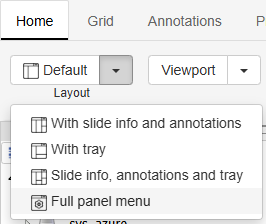
These buttons allow for quick switching between workflows with commonly used combinations of panels, or allow you to fully customize which panels are open. There is a default layout button that you can directly click and other options shows up by pressing the dropdown arrow button.
You can read a general overview of what panels are for here or look at the specific page for the panel you're interested in for more details.
The Quick Layouts
The 4 buttons open pre-set configurations - if you have a specific set of panels you work with often, you can ask your administrator to set up a new shortcut for you.
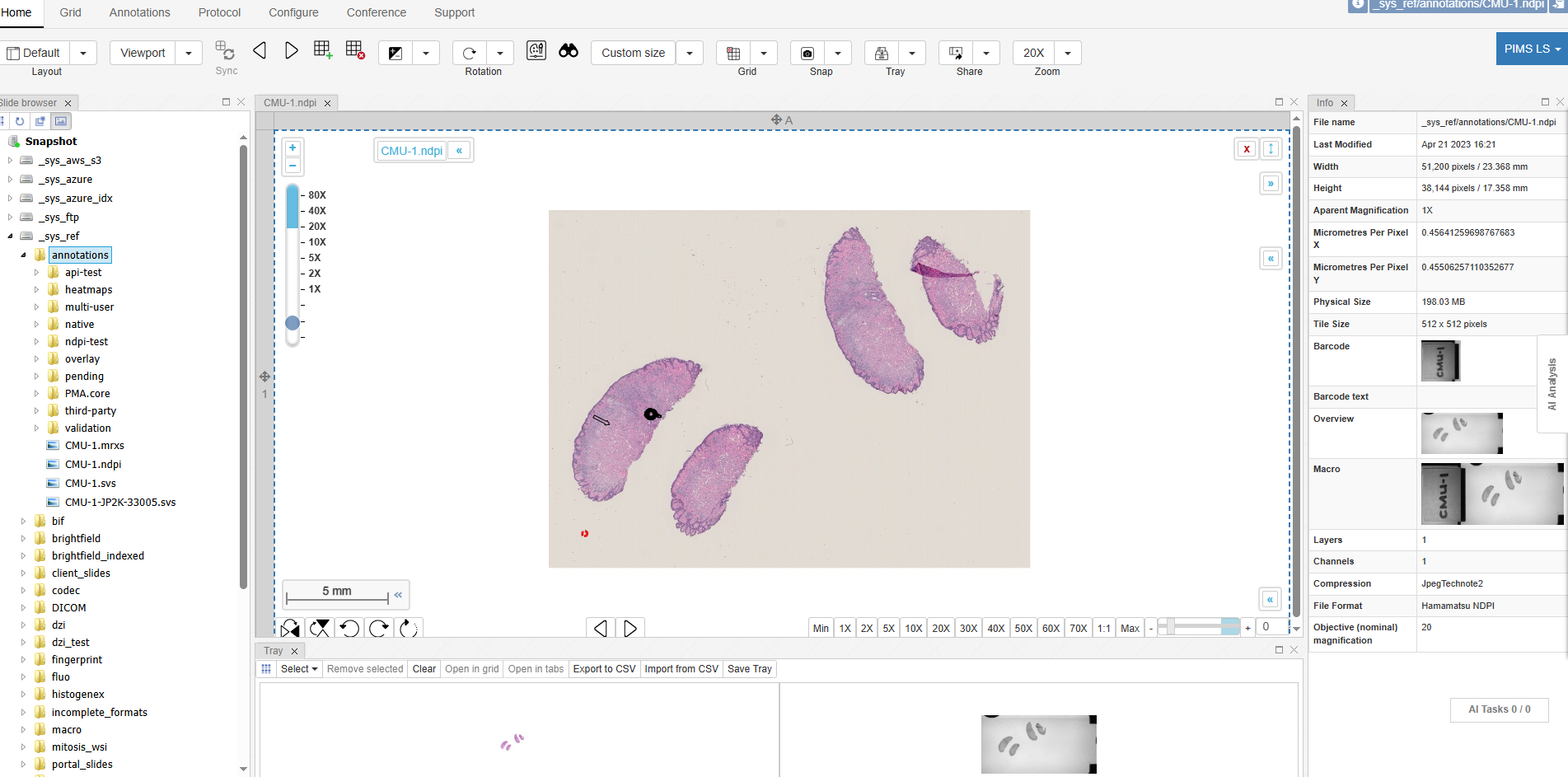
For example clicking the third button:
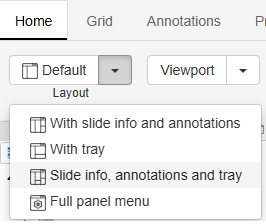
Opens three panels - the file browser, the tray panel, and the slide info panel:
The Custom Layout Button
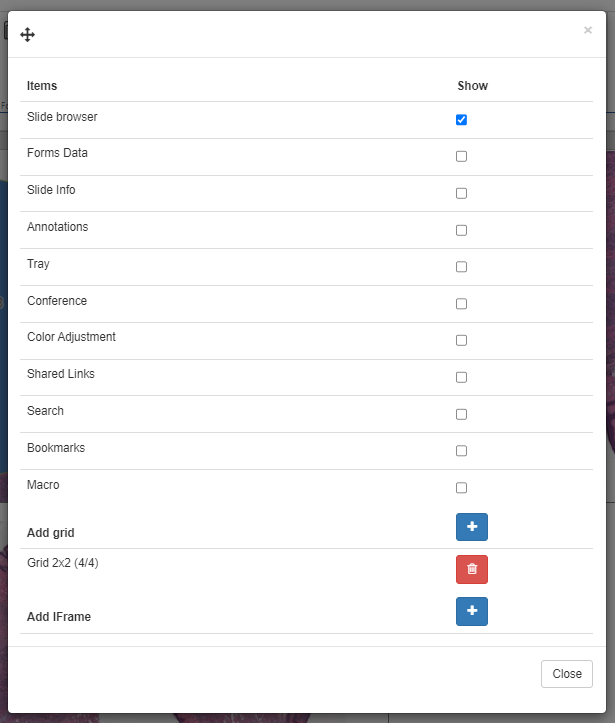
The fifth button with the settings cog inside is the custom layout button:
It pops open a menu in which you can check on/off all the panels you would like to see/hide
layouts.txt · Last modified: 2025/05/13 11:22 by ali


