
Sidebar
selected_annotations
Table of Contents
Annotations: Selected Annotation Workgroup
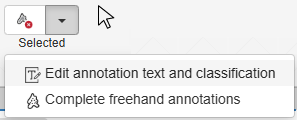
The Selected Annotation drop down contains icons for merging two or more annotations, and editing currently selected annotation(s)
Cursor
The cursor key will cancel any annotation function you currently have active e.g. continuous drawing and bring back the normal cursor so that you can navigate the image or select annotations by clicking on them

Delete annotation
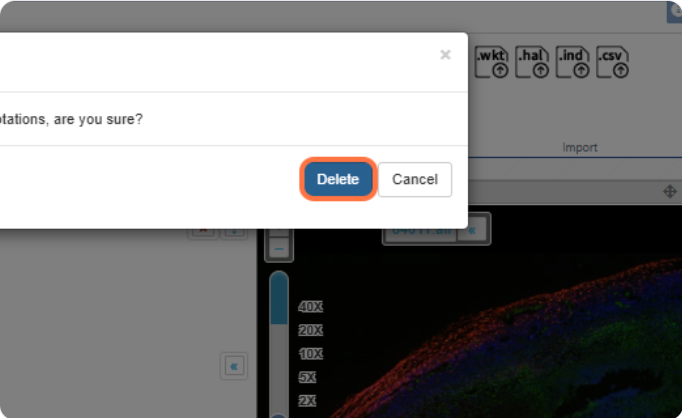
With an annotation selected - see the blue highlight below - clicking this button will delete the annotation

You will be prompted to confirm that you want to perform this operation
Edit annotation text
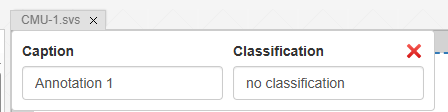
You can click on any annotation from viewport or from annotation panel and it will show up a box with annotation text and classification. User can edit that as per liking.
Merge annotations
Selecting two or more Lines / Freehand lines and pressing this button will complete the shape by joining them up
To select multiple annotations at the same time, click one annotation, then press “Click + Shift” on another annotation.
Please note this feature only works with Freehand Lines and / or Lines
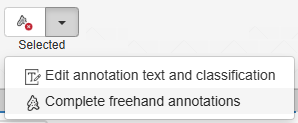
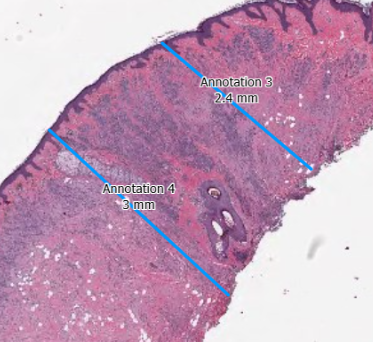
In the example below you can see there are two parallel lines which are selected.
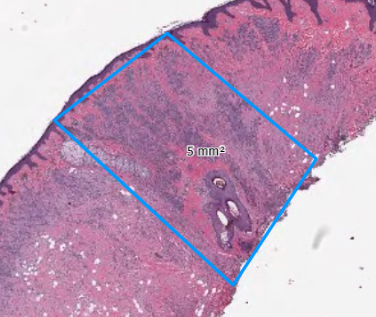
After pressing the merge annotations button, they are joined to make a rhombus
selected_annotations.txt · Last modified: 2025/05/10 23:43 by ali


