
Sidebar
panel_conference
This is an old revision of the document!
Conferencing panel
Conferencing is fantastic for collaborative second reviews and demonstrations to colleagues and students.
With it you can have the full multi-head microscope from anywhere in the world.
Just head to the conference panel at the top of the screen, click the start button, and share the link with your audience.
Check out what it can look like in the video below:
Setting up a conference
You can either head to the conference tab, or open the conference panel.
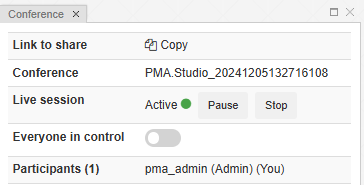
In the conference panel, you will see the above menu
Conferences can be in different states:
- No active conference: when there is no active conference this panel shows a placeholder that allows user to Create new conference or Join an existing conference.
- Active conference. When you've started a conference you will see:
- Link to share - 'Copy' button allows to copy link to clipboard, and then this link can be used for joining a conference as participant
- Owner - nickname of user who created a conference
- Nickname - nickname of current user
- Live session - Shows Active or Inactive if you've paused the session
- Everyone in control - when everyone in control is enabled, all participants can control the slide and make temporary annotations
- Participants - list of participant nicknames
P.S The conferencing feature of PIMSLS works in close collaboration with PMA.live. A PMA.live server component must be configured explicitly in the PIMSLS administrative back-end in order for this functionality to work.
panel_conference.1733401852.txt.gz · Last modified: 2024/12/05 15:30 by chris


