
Sidebar
slides_sharing
Table of Contents
Sharing Slide(s)
PIMSLS allows you to share content in a variety of ways. There is a dedicated group for sharing content on the Home and Grid tabs of the ribbon:
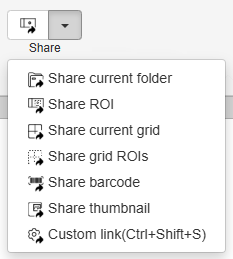
From top to bottom the icons are:
- Quick Share current slide
- Quick Share current folder
- Quick Share currently selected ROI / annotation
- Quick Share current grid
- Quick Share current ROIs/annotations visible in the grid
- Quick Share barcode of current slide
- Quick Share thumbnail of current slide
- Custom share - this option shows you all the above possibilities and gives you extra customization options
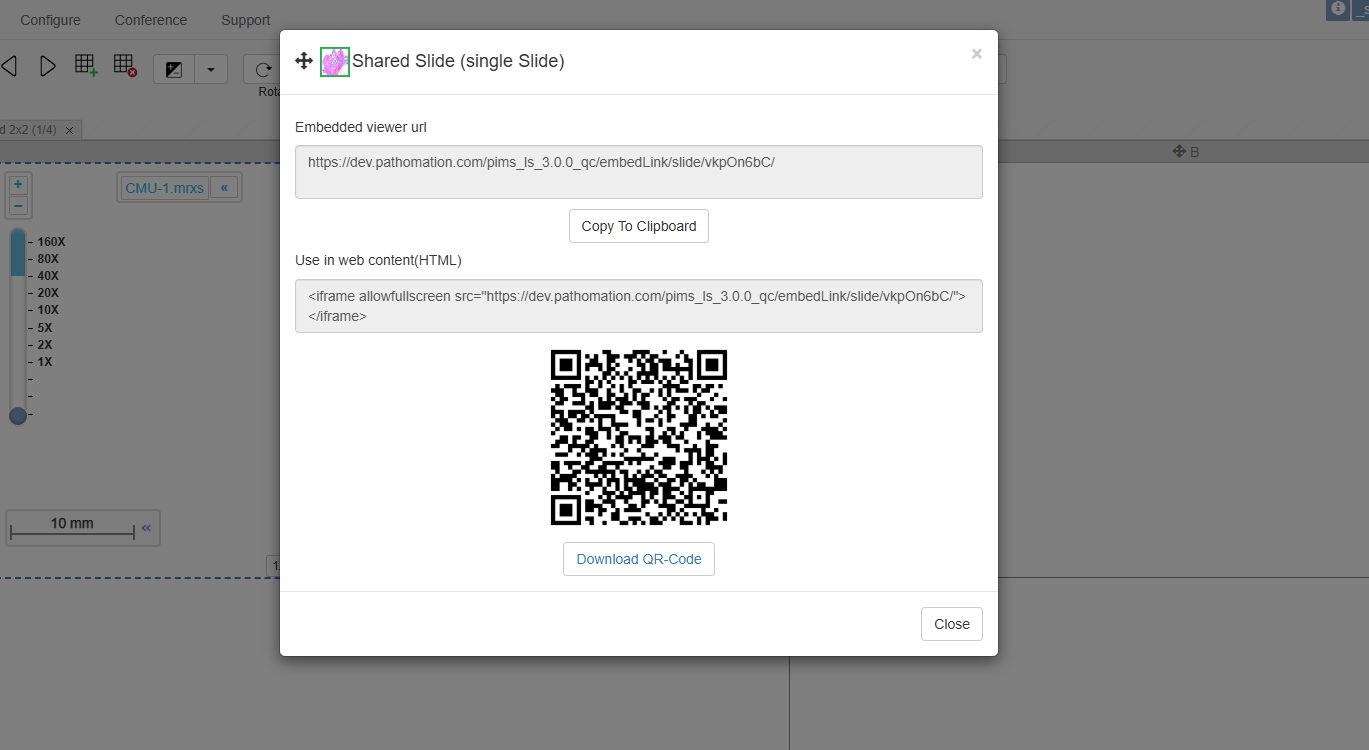
Once you click of any of the Quick Share options you will be shown a popup window that allows you to copy the shared link to clipboard or to scan / download the QR-code
Custom Share
If you want more control over what and how you’re sharing content, you can click on the final “Custom Share” button of the group. You could say that that’s our “universal” share button.
It allows for further customization of your share link, including:
- Setting a password to protect your shared content
- Setting an expiry date (e.g. students can only access it for the duration of a test)
- Include or exclude the barcode, annotations, annotation labels, file name from the shared link
- Give the share a name
- Add comments

Password protected preview

Preview
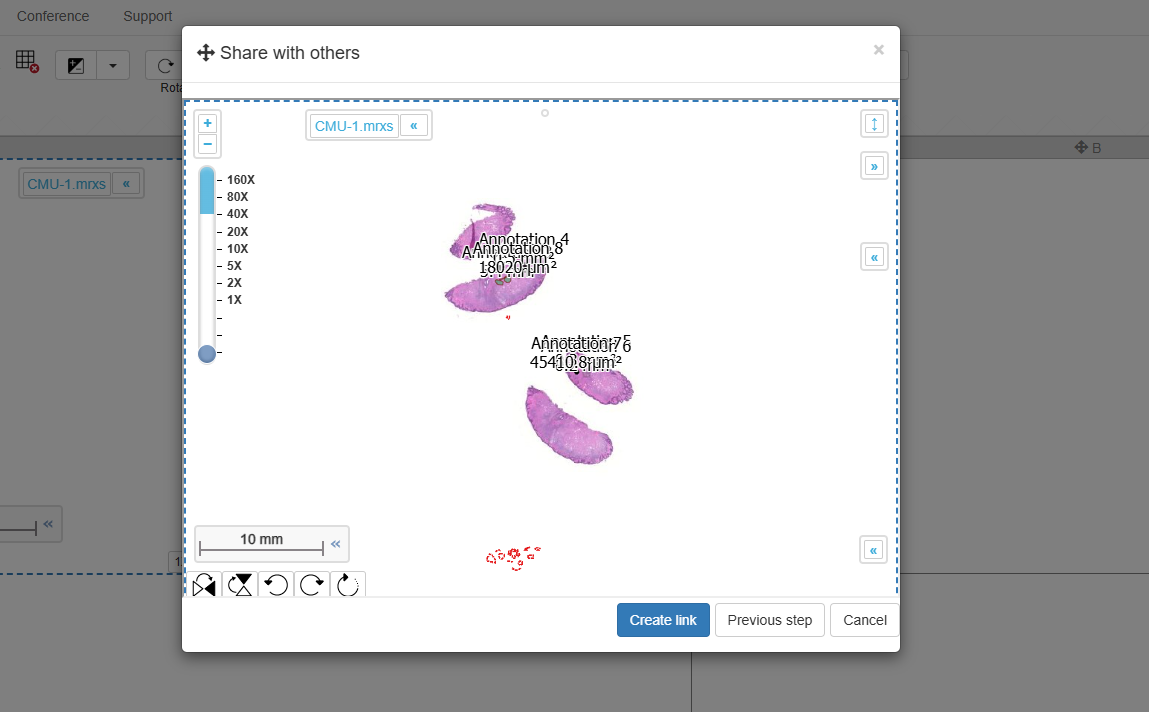
And once you press the “Create Link” button it will generate the share link and show a popup window with option to “Copy to clipboard” or “Download QR-Code”

slides_sharing.txt · Last modified: 2025/05/10 21:52 by ali


