
Sidebar
slides
This is an old revision of the document!
Table of Contents
Interacting with slides
PIMSLS provides multiple ways to interact with slides that include:
Viewport
Viewer area contains application Main page, Embedded view and Embedded directory. Main page consists consists of 2 main parts - ribbon on top and panels organized in panel stacks.

Viewer panel consist of one or more viewports organized in grid and toolbar underneath it (only in single-slide mode). Currently selected slide is highlighted with the blue dashed border [#1 on a picture #1]. When user adds new viewer panel its grid has only 1 column and 1 row, so it's single cell grid. When changing grid size application will always ask what to do with slides that were already loaded into grid - whether application should preserve it or clear all.
Toolbar is placed underneath the viewer [#2 on picture #1] Toolbar consists of (left to the right):
- Flip horizontally
- Flip vertically
- Rotate counter-clockwise 90 degrees
- Rotate clockwise 90 degrees
- Rotate 180 degrees
- Previous slide
- Next slide
- Magnification buttons
PIMSLS allows to load multiple slides into the grid in addition to opening multiple viewer panels with grid inside. Each slide position could be changed using [i] [#1 on picture #2] button on top of viewport - it's required to drag and drop that [i] handle to the desired position - it could be either another cell, tray or new viewer panel. In addition Column/row of grid also could change it's position - there is a handle [#2, #3, #4, #5 on picture #2] near each row or column that could be drag and dropped to the required position.

Annotations (available in PIMSLS)
Annotations panel displays existing annotations on the selected slide. A table contains Note, Pen Width, Color, Area and Length of every annotations. Besides this data there are buttons for remove, edit and show/hide annotation item. Annotation creating also available with Ribbon tools at Annotations tab. Available buttons:
- Delete annotation
- Edit annotation (opens window with caption field)
- Show/hide annotation (toggles displaying of the annotation on viewport)
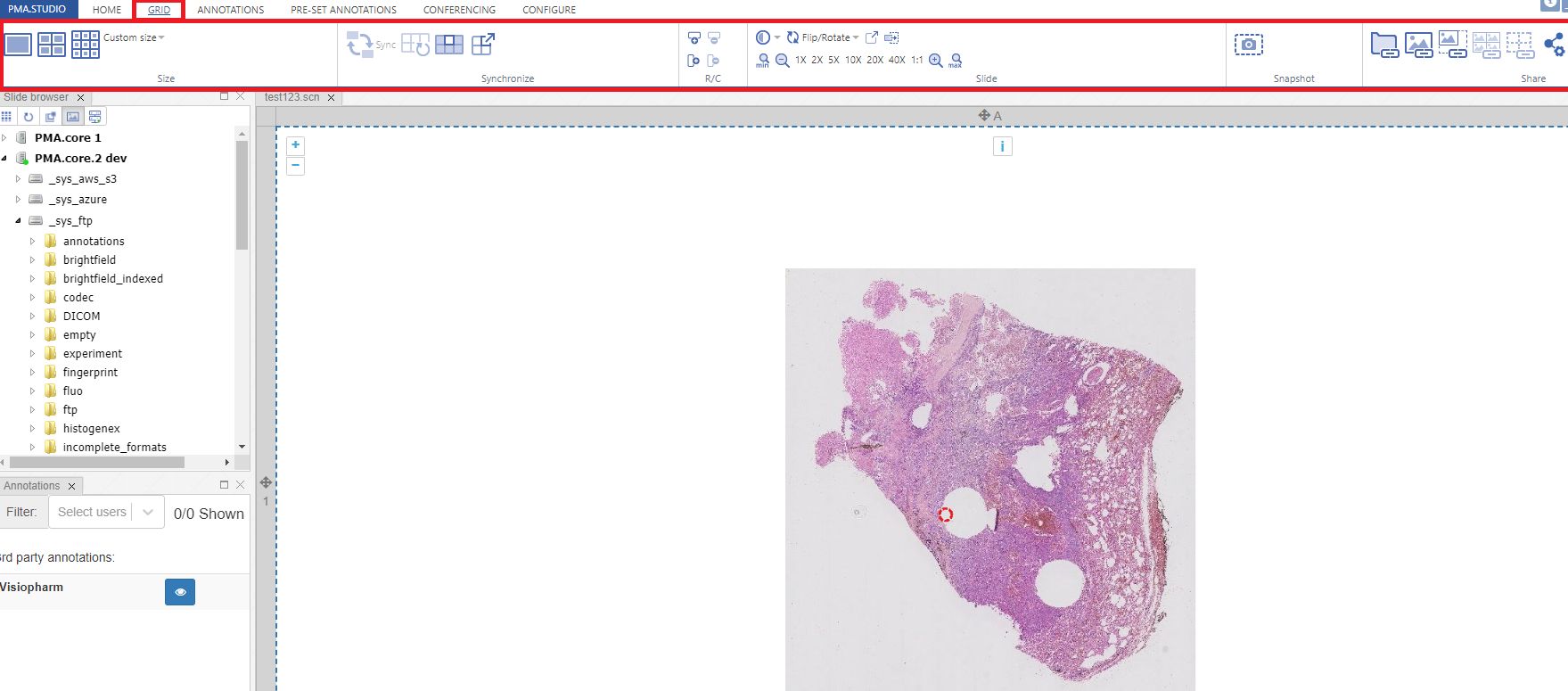
Grid Tab
Grid tab provides set of tools that allows resizing grid size, slide static snapshot and live sharing of slides.
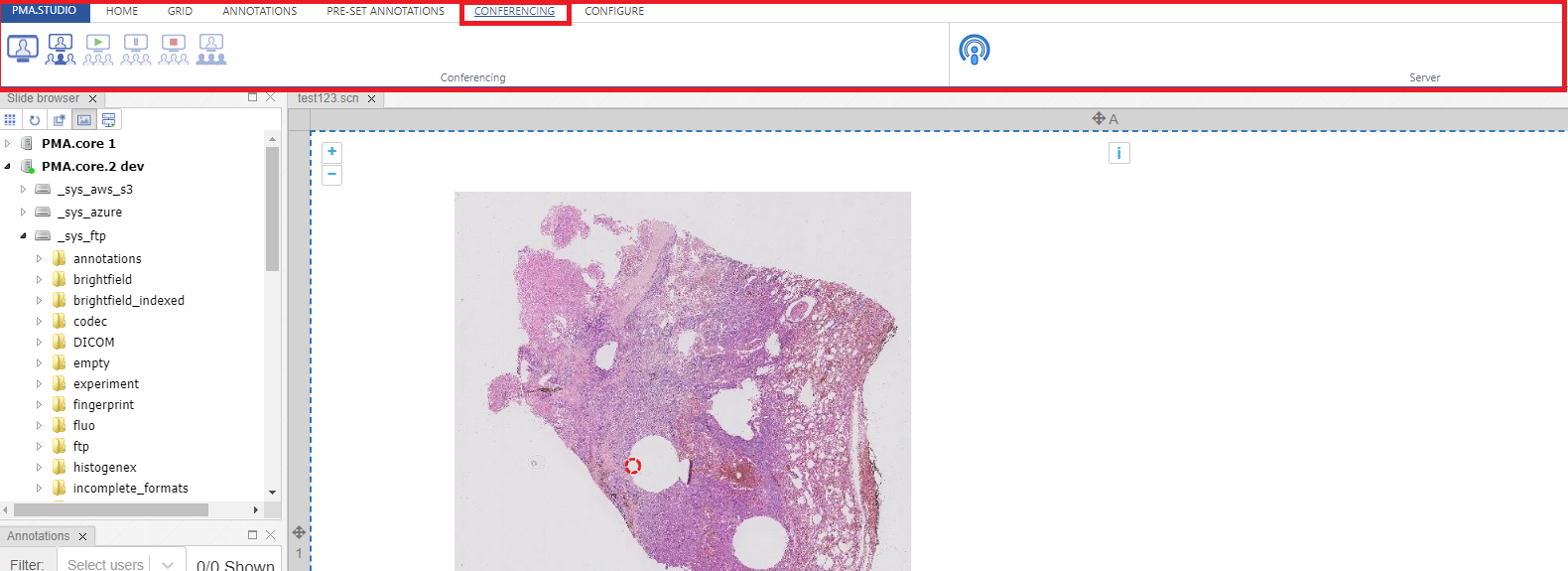
(Conferencing Tab)
This unique tab allows you to create a conference or to broadcast a live session where an expert can add annotations to a slide to be viewed by number of audience.
slides.1730987231.txt.gz · Last modified: 2024/11/07 16:47 by chris


