
Sidebar
slides_snapshot
This is an old revision of the document!
Static snapshots
PIMSLS has several snapshot functions on the Home tab.
- Opens the snapshot menu for the current slide
- Takes a quick snapshot of the current grid i.e. all open images (also available in the Grid tab)
- Takes a snapshot of all ROIs / annotations that are currently open and downloads them in a ZIP file

you to take snapshot of the selected slide. Once you click on the snapshot button in the “Home” tab, a popup window for “Save snapshot” appears with multiple options related to the slide before saving it. You can specify:
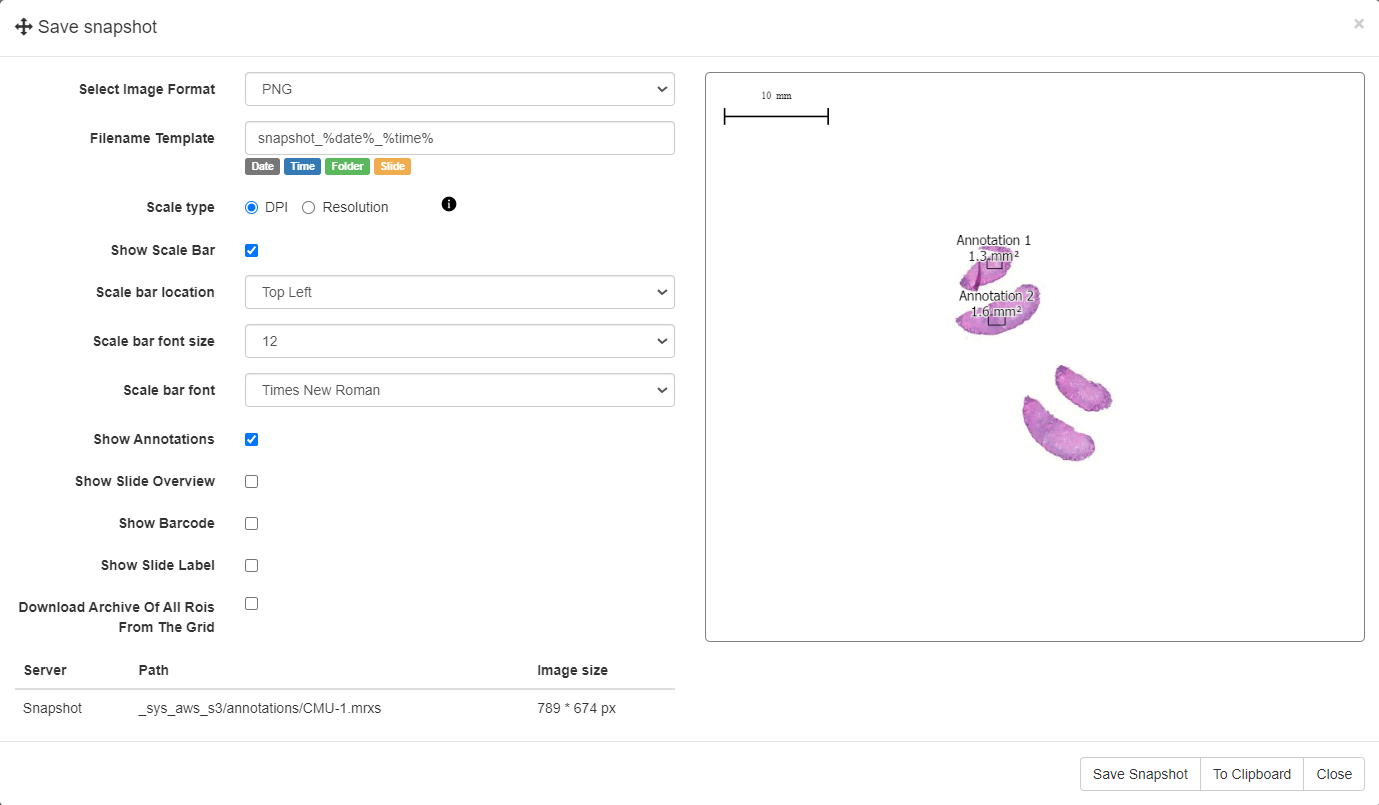
- Image Format
- Filename Template
- Scale type i.e. DPI or resolution based
- Show Scale Bar - selecting this will prompt options to customize such as font, location
- Show Annotations
- Show Slide Overview
- Show Barcode
- Show Slide Label
- Download archive of ROIs
You have two options to save a snapshot, if you press “Save Snapshot” it will generate an image that can be saved on your system or if you press “To Clipboard”, it will copy that slide to clipboard and you can simply paste it elsewhere.
slides_snapshot.1730903354.txt.gz · Last modified: 2024/11/06 17:29 by chris


