Table of Contents
Edit annotations

PMA.studio allows you to edit, delete individual, delete all, modify and merge annotations. Once you create annotations, they are added to the annotation tray panel, which allows you to select an annotation and perform certain actions on it.
Cursor

This button allows you to cancel any ongoing annotation operation. If you're in the continuous drawing mode, e.g., and want to stop drawing, you can click on this cursor icon, and your mouse will return to its default operational “pan and zoom” mode.
Delete

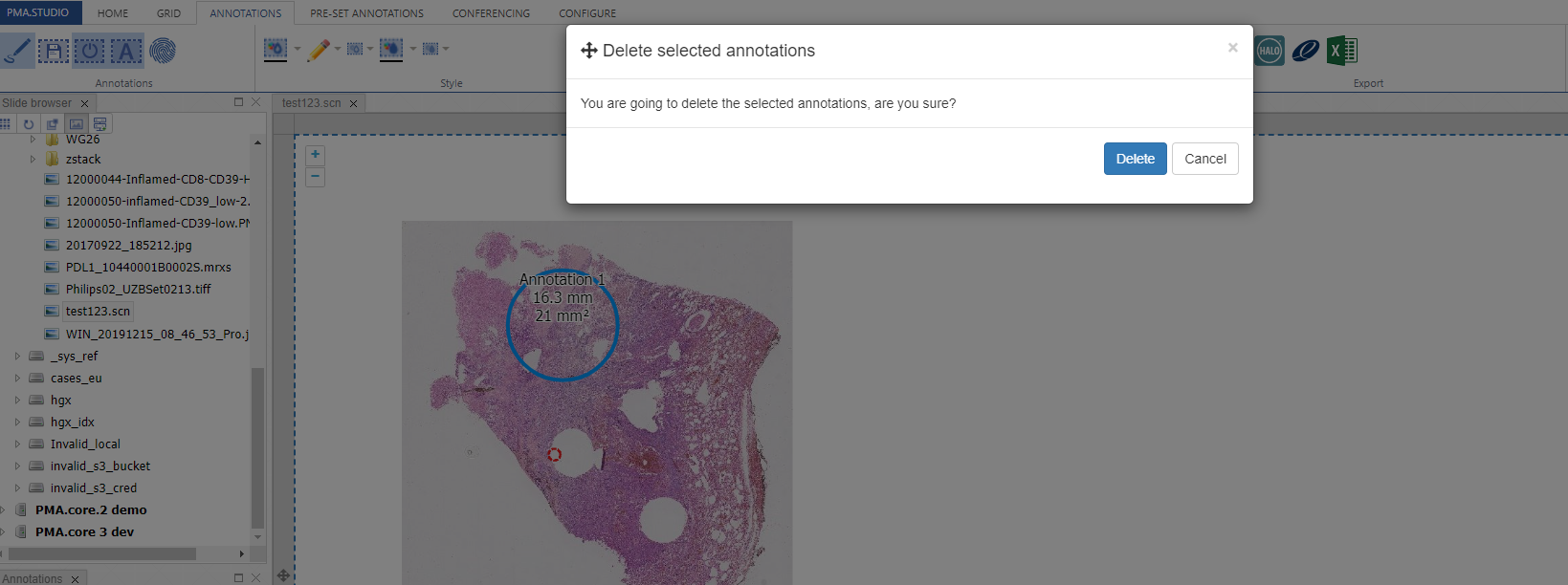
This button deletes the currently selected annotation. Once you click the button, it shows you a confirmation popup, and once you press the “Delete” button, the annotation gets deleted.
Delete All Annotations


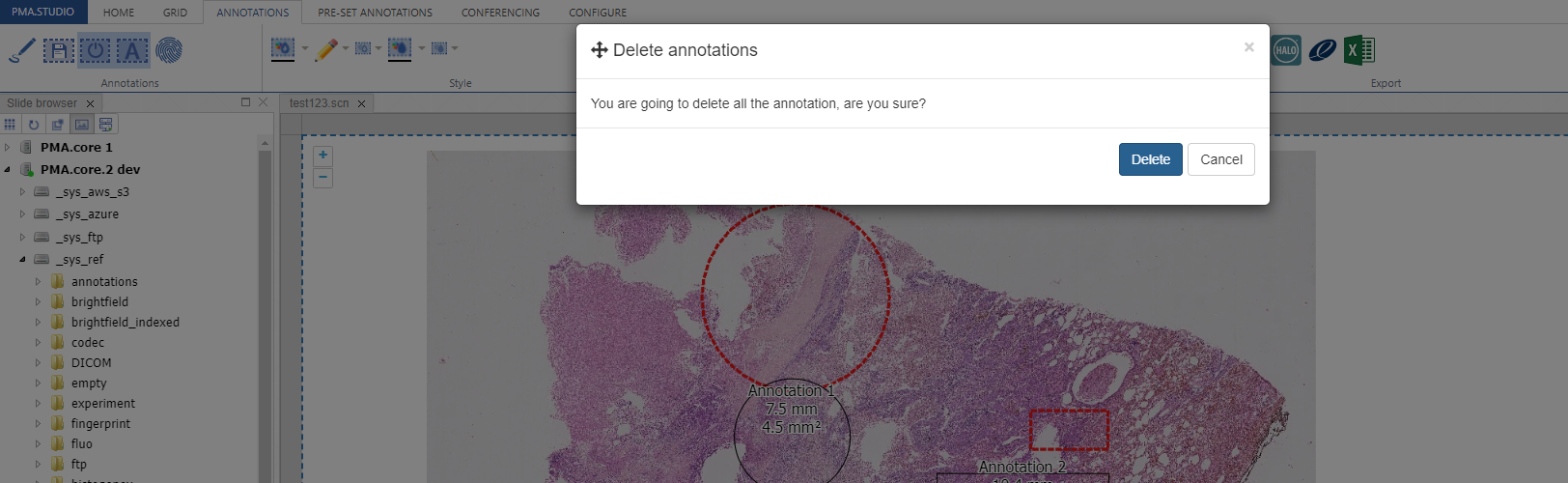
The “Delete all annotations” button allows the user to delete all annotations at once. Once you click the button, it shows you a confirmation popup, and once you press the “Delete” button, all annotations get deleted.
Edit text

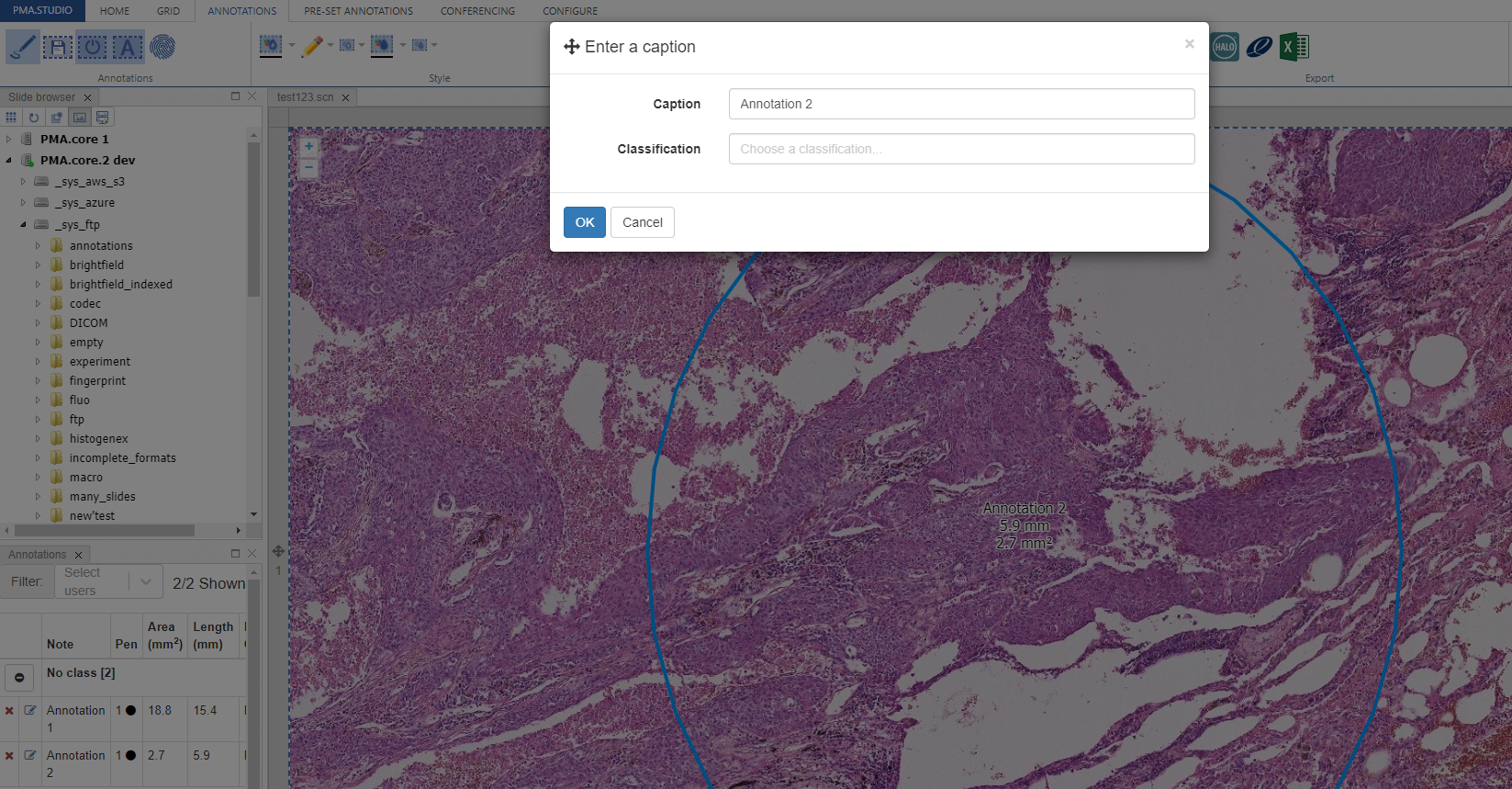
The “Edit” button allows you to edit an existing annotation. Once you select an annotation from the annotation tray panel, you see a popup window that allows you to change the caption and classification of the annotation. Once you modify the content and press the “OK” button, the annotation gets updated.
Merge

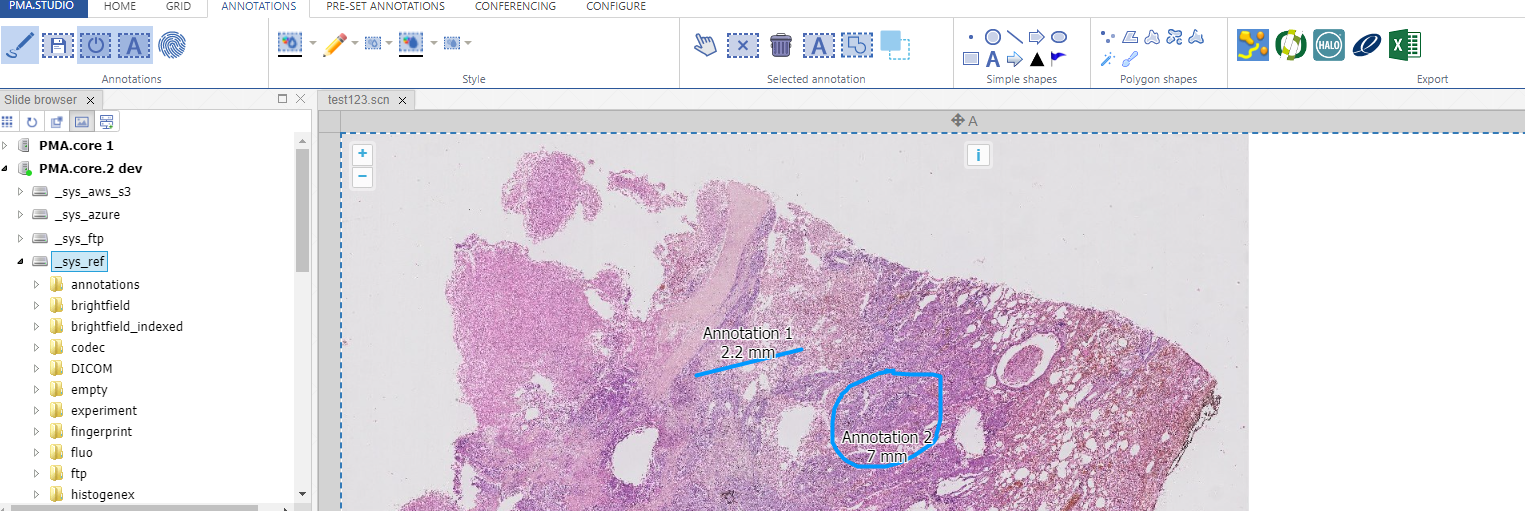
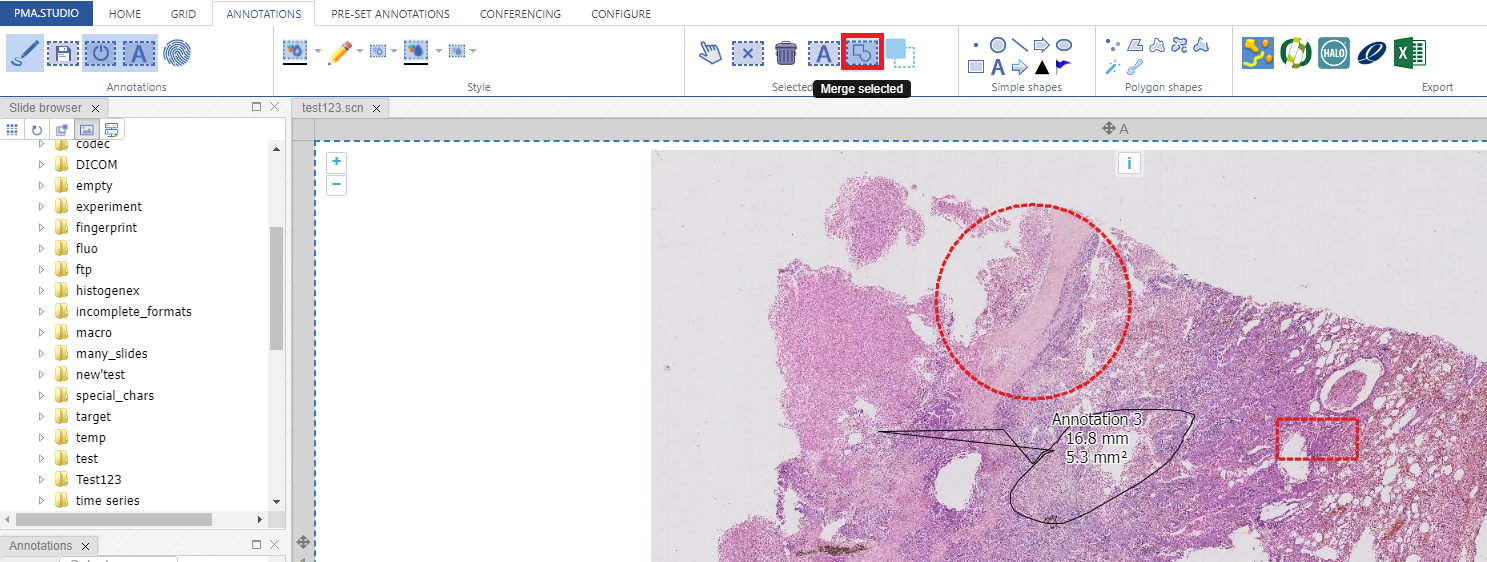
The “Merge selected annotation” button allows you to merge two annotations. Right now, PMA.Studio allows the merging of “Line” and “Freehand” annotation types. To merge annotations, you first select the two annotations using the shift key and press the “merge selected” button, and both annotations will be merged.
Modify

The “Modify” button allows the user to modify an existing annotation. To modify an annotation, you need to select the annotation and then press the “modify” button. Once you are done with the modification, you can save the annotation.
Union

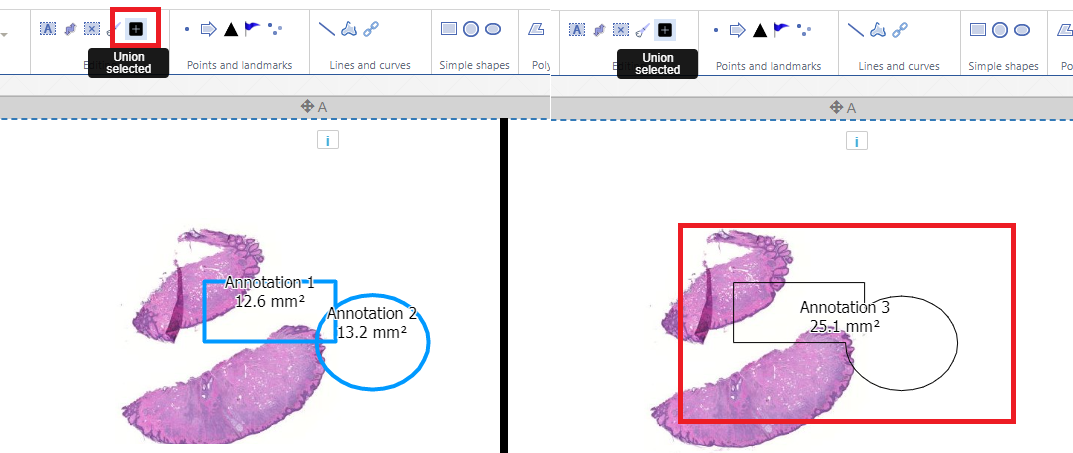
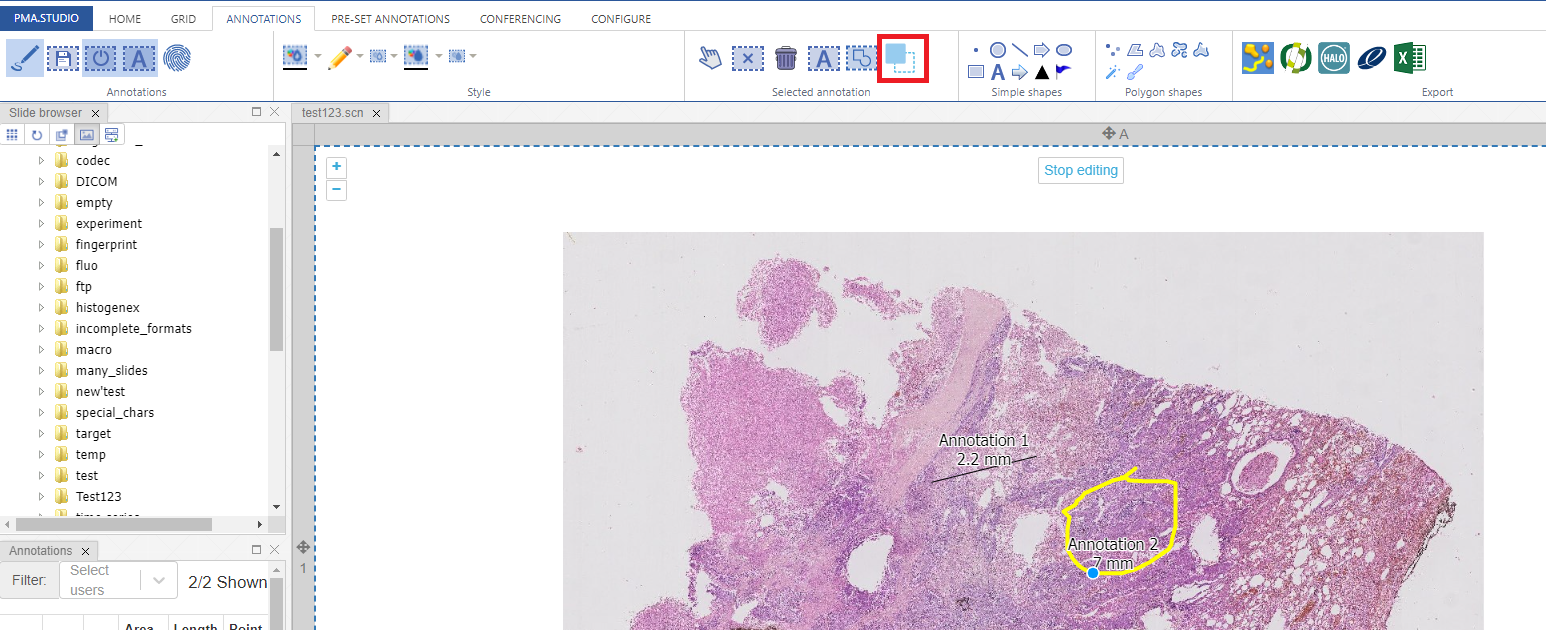
The “Union” button allows user to union two polygon geometries. To union annotations, you first select the two annotations using the shift key and press the “union selected” button, and both annotations will be united.