Table of Contents
Configure Server
The Server toolgroup in the configure tab contains everything you need to connect to different kinds of storage.
Not only can you connect to other PMA.Cores, but also to storage on Pathomation's cloud platform My Pathomation if you have an account - FYI your first 10 GB is free!
You can also connect to PMA.start, our desktop application for local storage connection.
Connecting to another PMA.core
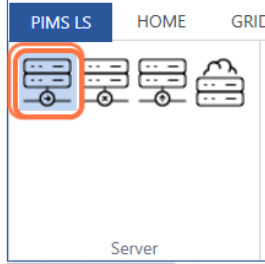
Clicking the first icon will open the menu for connecting to another PMA.core, pictured below:
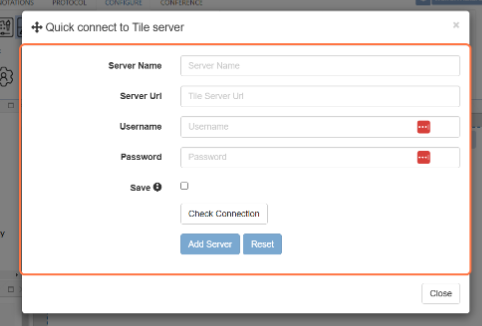
Here you can input:
- Server name: this is a nickname for the Core/Drive you want to connect to
- Server URL: this is the web address of the PMA.core you want to connect to e.g. mycore.mybusiness.com/core/
- Username: Your username for logging into the PMA.core
- Password: Your password for logging into the PMA.core
You can check the connection to see if all the details work.
If you need to be connected to a VPN to access your PMA.core, ensure that you are connected to the right VPN.
Disconnect Server
Clicking this button will disconnect you from all PMA.core servers you have manually connected.
Please note that any servers that are set to be automatically logged into will not be affected.
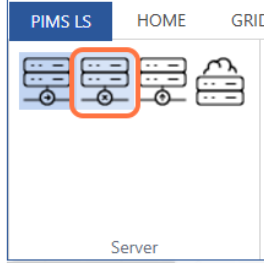
Connect to PMA.start
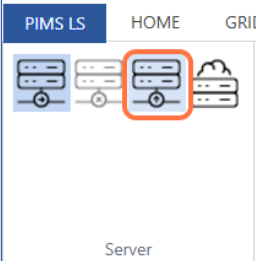
The third icon will search for an active instance of PMA.start on your device and integrate it in your slide browser
Please note - ensure that PMA.start is running before clicking the button
Connect to My Pathomation
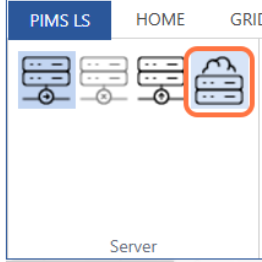
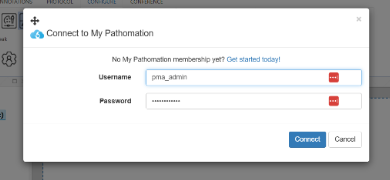
You can also connect to your MyPathomation cloud account
Simply login with your email address and password as you would on my.pathomation.com and your content will seamlessly be added.