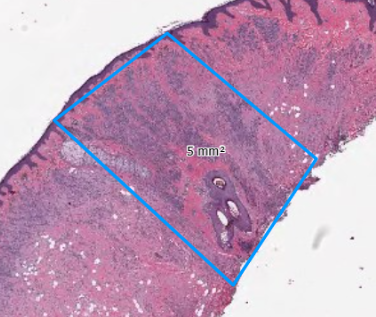
This is an old revision of the document!
Annotations: Selected Annotation Workgroup
The Selected Annotation toolgroup contains icons for merging two or more annotations, and editing and deleting your currently selected annotation(s)
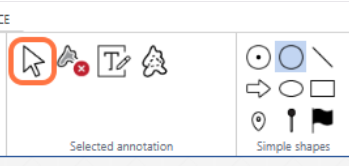
Cursor
The cursor key will cancel any annotation function you currently have active and bring back the normal cursor so that you can navigate the image or select annotations by clicking on them
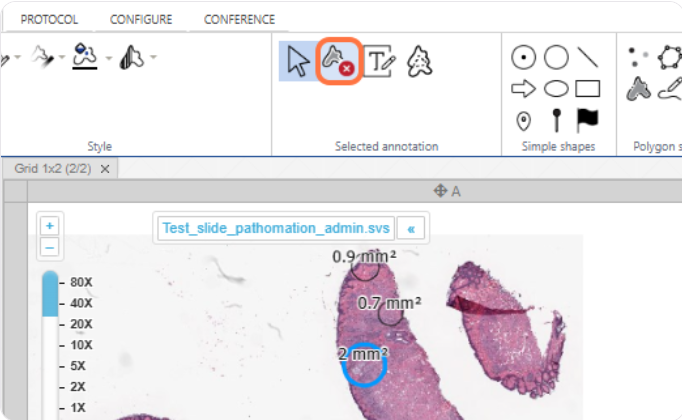
Delete annotation
With an annotation selected - see the blue highlight below - clicking this button will delete the annotation
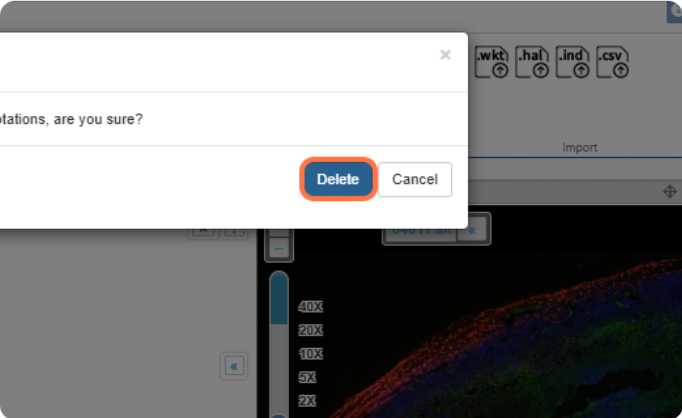
You will be prompted to confirm that you want to perform this operation
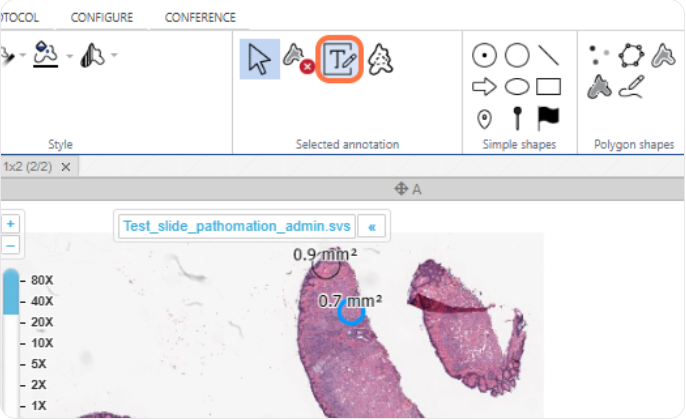
Edit annotation text
With an annotation selected, clicking this button will open the text editing menu for the annotation
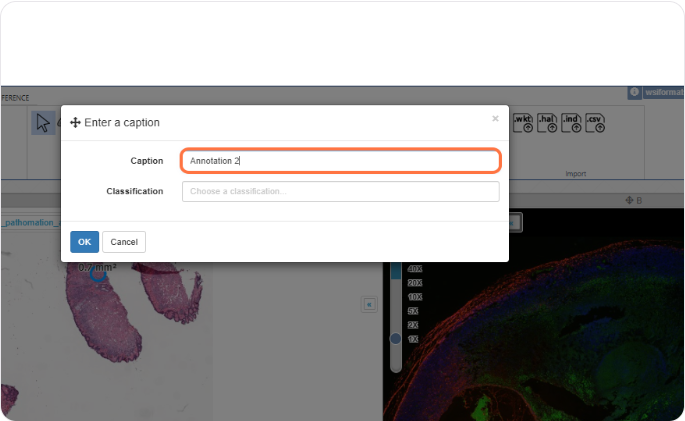
In the menu, you can change the label / classification of the annotation
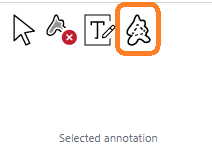
Merge annotations
Selecting two or more Lines / Freehand lines and pressing this button will complete the shape by joining them up
Please note this feature only works with Freehand Lines and / or Lines
In the example below you can see there are two parallel lines which are selected.
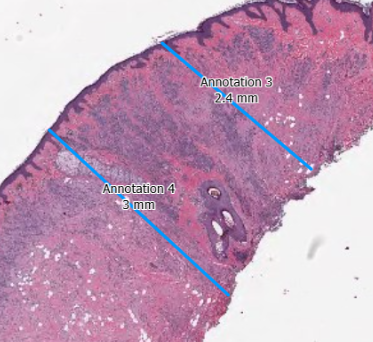
After pressing the merge annotations button, they are joined to make a rhombus